

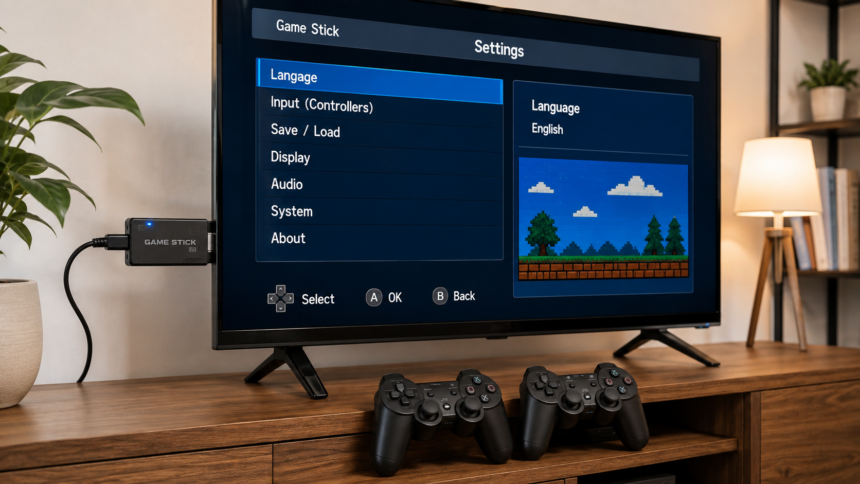
The manual settings HSSGameStick menu can be easy to overlook. Most GameStick-style consoles are designed to start quickly: connect the stick to an HDMI port, provide USB power, connect the wireless controller receiver, and choose a game. Once something needs changing, however, knowing where the settings are and what they actually do becomes important.
The first thing to understand is that HSSGameStick is not consistently documented as one fixed hardware model. Game sticks sold under similar names may use different firmware, storage capacities, controller designs, or menu layouts. Even the PS3000 Game Stick Lite manual notes that product parameters and software can change between versions.
For that reason, this guide focuses on settings and controls documented for closely related Game Stick Lite hardware while explaining where your own unit may differ.
What Is HSSGameStick?
An HSSGameStick-style device is a compact retro gaming system that connects to a television or monitor through HDMI. Instead of using discs or cartridges, these devices generally run games through emulation software and store their files on internal or removable memory.
A documented PS3000 Game Stick Lite, for example, supports platforms including CPS, Game Boy, Game Boy Color, Game Boy Advance, Mega Drive, Super Famicom/SNES, Famicom/NES, PlayStation 1 and Atari-based arcade games. Its interface also includes game lists, classifications, history, favorites and search.
That does not mean every HSSGameStick contains exactly the same systems or games. Storage card size, firmware version and seller configuration can change what appears on your particular device.
First-Time Setup
Before changing the manual settings, make sure the hardware is connected correctly.
Insert the GameStick into an available HDMI port on your television or monitor. If the stick cannot fit comfortably behind the TV, use the HDMI extension cable supplied with compatible models.
Next, connect its USB power cable. Similar Game Stick manuals specify a 5V USB power supply, while the precise current requirement can vary between versions. The PS3000 documentation lists several 5V power configurations and recommends following the hardware supplied with the device.
If your GameStick uses a removable TF or microSD card, make sure it is properly seated before powering on the console.
Finally, insert the 2.4 GHz wireless controller receiver into the appropriate USB interface and switch on the controllers. On comparable models, the receiver handles the connection between the gamepads and console.
Once everything is connected, select the correct HDMI input on your TV.
Open the Settings
On Game Stick Lite firmware documented in the PS3000 manual, you can open the system settings from the main game list by pressing the SELECT button on the controller.
The documented settings menu contains options for language, key tone, searching local files, restoring default settings, system information and exiting the settings screen.
If pressing SELECT does nothing on your HSSGameStick, do not assume the controller is faulty immediately. A different firmware version may use another button or menu path. Check the printed manual included with your specific stick before attempting a factory reset.
Language Settings
Language is one of the most useful options to change during the initial setup.
The PS3000 manual reports support for Simplified Chinese, Traditional Chinese, English and a wider selection of additional interface languages.
Open Settings, locate Language, and choose the language you want for the GameStick interface.
There is an important difference between the system language and the language inside an individual game. Changing the console menu to English does not automatically translate a game ROM. The language available inside a game depends on the particular game version stored on the device.
If your menu changes successfully but a game remains in another language, this is therefore not necessarily a settings problem.
Key Tone Settings
Some GameStick firmware includes a key tone option. This controls whether the menu produces a sound when you move through items or press buttons.
People who prefer audible feedback may want it enabled. If you play quietly at night or find menu sounds distracting, turn it off.
The key tone option documented in the Game Stick Lite settings affects the interface rather than the soundtrack or sound effects inside individual games.
Controller Settings
Controllers are where many users expect to find extensive manual customization. This is also an area where firmware versions differ considerably.
Related Game Stick hardware commonly uses a 2.4 GHz wireless USB receiver. The PS3000 manual identifies separate connection indicators for player one and player two, while a double-flashing state indicates that a controller signal has not connected correctly.
If both controllers work normally in the menu, avoid remapping buttons simply because another online guide recommends a particular layout. Different emulators use different button conventions, and changing a working configuration can make some games harder to operate.
Some HSSGameStick-related guides discuss controller customization, but button-remapping options should not be assumed to exist on every firmware version. The documented PS3000 system settings list does not describe universal global remapping.
Use your actual firmware menu as the final reference.
Game Controls
Basic navigation is straightforward on compatible Game Stick Lite firmware.
Use the directional controls to move through the game list. The manual indicates that START or the A button can launch a selected game, while B returns from the game list toward the home interface.
Inside a running game, pressing SELECT and START together brings up an in-game menu on documented PS3000-style firmware.
That menu can provide access to functions such as:
Pause, Save, Load, and Exit.
This shortcut is especially useful because simply turning off the console can cause you to lose unsaved progress.
Save and Load Games
Emulation-based consoles may provide save-state functions in addition to the original saving system built into a game.
When the supported in-game menu appears, choose Save to create a state that records your current position. Later, choose Load to return to that state.
Save states are convenient, particularly for older games that originally used passwords or limited save points. Still, avoid removing the storage card or disconnecting power while a save operation is happening.
Related Game Stick manuals specifically warn against removing the TF card while the device is operating or saving because doing so can contribute to corrupted data.
Search for Games
A large retro game collection quickly becomes difficult to browse manually.
Compatible Game Stick Lite interfaces therefore include a Search function. The PS3000 documentation states that games can be filtered by entering their names and that the search itself is not case-sensitive.
You may also find separate menus for Classification, History and Collection.
Classification groups games according to their emulated system. History shows titles you have previously played, while Collection functions as a favorites list. These tools are often faster than scrolling through hundreds or thousands of entries.
Local File Search
The documented manual settings also include a search local files function. This option is useful when the console needs to rescan compatible files stored on its memory card.
It should not be confused with the normal game-name search.
If you add legitimately obtained compatible files to a supported GameStick, follow the folder structure and file formats required by your particular firmware. The PS3000 instructions state that supported game files should be placed in the corresponding folders for the appropriate system.
Before modifying a memory card, making a backup is a sensible precaution.
Display Settings
Display controls are one of the biggest areas of variation among HSSGameStick versions.
The documented PS3000 hardware outputs video through HDMI, but its basic system-settings list does not promise advanced options such as manually selecting resolution, shaders, frame skipping or video filters on every model.
If your firmware provides extra display or emulator settings, change one option at a time. This makes it much easier to identify which adjustment caused stretched images, visual glitches or slower performance.
For classic 4:3 games, an original or proportional aspect ratio usually gives a more authentic image than aggressively stretching the picture to fill a modern widescreen TV. Whether that setting is available, however, depends on your emulator and firmware.
Also check the television itself. Game Mode on many TVs can reduce extra image processing and may make controller input feel more immediate, although this is a TV setting rather than an HSSGameStick setting.
Restore Default Settings
If a configuration change causes unexpected problems, compatible firmware includes a restore default settings option.
Use this carefully.
A restore option may reset interface preferences, language choices or other configuration changes. Its exact behavior can differ depending on firmware, so do not assume it will preserve every custom setting.
Before restoring defaults, write down any settings you may want to recreate.
If your console contains personal save files that matter to you, back up the storage card first whenever that is safely possible.
System Information
The System Information screen can be valuable when troubleshooting.
It may help identify the firmware or software version installed on the GameStick. This matters because two sticks that look identical externally can have different menus internally.
When searching for instructions online, compare your model designation, interface appearance and firmware information rather than relying only on product photos.
The PS3000 documentation itself warns that the appearance, software and product parameters can change and that the physical product should be treated as the reference.
That warning explains why some HSSGameStick tutorials show settings that other users cannot find.
Fix a Black Screen
A black screen is usually worth checking at the connection level before changing software settings.
First, confirm that the television is using the HDMI input where the GameStick is connected. Then reseat the HDMI connection and make sure the USB power cable is firmly attached.
A related Game Stick 4K manual lists incorrect HDMI input, a loose HDMI connection and insufficient power among the common causes of a black screen or “no signal” condition.
If necessary, try another HDMI port and an appropriate USB power source that matches your device requirements.
Avoid repeatedly removing the storage card while troubleshooting a powered-on unit.
Fix Controller Problems
If the gamepads stop responding, start with simple checks.
Make sure the wireless receiver is securely connected. Replace weak controller batteries where applicable and move closer to the console to reduce the chance of wireless interference.
Comparable Game Stick troubleshooting documentation lists low batteries, pairing problems, wireless interference and receiver issues among the likely causes of an unresponsive controller.
If one controller works and the second does not, swap batteries and restart the GameStick before changing software settings.
When neither controller works, inspect the wireless receiver first.
Fix Games That Do Not Load
A game that refuses to start does not automatically mean the entire GameStick is damaged.
Restart the console and try another title. If most games work and only one crashes, that particular file may be damaged or incompatible with the emulator configuration.
If many games suddenly stop loading, inspect the storage card connection.
Game Stick troubleshooting documentation identifies an improperly inserted or corrupted TF card, software problems and incompatible game files as possible causes of loading failures.
Never remove the card while the device is actively reading or writing data.
Improve Performance
There is no universal “best performance” setting for every HSSGameStick.
Older 8-bit and 16-bit systems are generally easier to emulate than more demanding platforms, while performance can vary between individual games and hardware revisions. A title running poorly does not necessarily mean your menu settings are incorrect.
Start from the default configuration. If your specific firmware provides emulator-level options, adjust only one setting at a time and test the same game again.
Avoid copying configuration values from a different GameStick model unless you know it uses the same hardware and firmware.
Sometimes the most stable settings are simply the defaults supplied with the device.
Protect the Storage Card
The TF or microSD card is one of the most important parts of many retro game sticks because it can hold games, emulator files, settings and save data.
Do not remove it while the console is powered on. Related Game Stick guidance specifically advises against removing the TF card during operation or game-saving activity because this can damage data.
If you plan to edit the card on a computer, create a full backup before changing folders or files.
This gives you a way back if a file is accidentally deleted or the original directory structure is changed.
Best Settings to Use
For most owners, the best manual settings HSSGameStick configuration is not an aggressive performance preset. It is a stable configuration matched to the exact firmware installed on the console.
Choose your preferred system language, turn key tones on or off according to preference, verify both controllers, keep the original storage card backed up, and leave unfamiliar emulator settings at their defaults until you know exactly what they control.
If your console is already running games smoothly, there is little benefit in changing every available option.
The safest approach is simple: change what improves your experience and leave working settings alone.
Final Thoughts
Understanding manual settings HSSGameStick makes these small retro consoles much easier to manage. The most commonly documented controls cover language, key tones, file scanning, system information, default restoration and in-game save/load functions. More advanced options can appear on certain firmware versions, but they should not be treated as standard across every GameStick sold under a similar name.
The most important rule is to work from your actual device and firmware version. Check the included manual, change one setting at a time, protect your storage card, and avoid following model-specific instructions that do not match your interface.
With those precautions, you can configure the console without turning a small settings adjustment into a larger troubleshooting problem.
FAQs
What are manual settings HSSGameStick?
Manual settings HSSGameStick refers to the options you can change directly on compatible GameStick firmware. Documented settings include language, key tones, local-file search, restore defaults and system information. Available options can differ by model.
How do I open settings on HSSGameStick?
On the documented PS3000 Game Stick Lite interface, press SELECT from the main game list to open the settings menu. Another HSSGameStick firmware version may use a different shortcut.
How do I change the HSSGameStick language to English?
Open the system settings, select the language option and choose English. Remember that this changes the console interface; it may not change the language contained inside individual game files.
How do I save a game on HSSGameStick?
On compatible Game Stick Lite firmware, press SELECT and START together while a game is running. The in-game menu provides options including Pause, Save, Load and Exit.
Why is my HSSGameStick controller not working?
Check the controller batteries, wireless USB receiver and distance from the console. Wireless interference or pairing problems can also prevent a controller from responding.
Why does my HSSGameStick show no signal?
Make sure the TV is set to the correct HDMI input, reseat the GameStick or extension cable, and check its USB power connection. Incorrect HDMI selection, loose connections and inadequate power are common causes on similar game sticks.
Can I reset HSSGameStick settings?
Compatible firmware includes a restore default settings option. Because different firmware versions may reset different items, back up important data and note your current configuration before using it.
Can I change controller buttons on HSSGameStick?
Some versions or emulator menus may provide button-mapping controls, but this is not guaranteed across all HSSGameStick-style devices. The basic PS3000 system-settings manual does not list global button remapping as a universal feature, so check your own firmware first.
Can I add games to HSSGameStick?
Some related Game Stick firmware can recognize compatible files placed in the appropriate emulator folders. File formats and folder layouts vary, so follow the documentation for your exact hardware and only use game files you are legally permitted to use.
Should I remove the TF card while HSSGameStick is on?
No. Related Game Stick documentation warns against removing the storage card during operation or while save data is being written, because doing so may corrupt data.
Why do HSSGameStick settings look different from online guides?
GameStick products can be sold with different firmware and hardware revisions even when the cases look similar. The PS3000 manual itself notes that software, appearance and product parameters may change between versions.
What are the best HSSGameStick settings for gaming?
There is no single best configuration for every model. Start with factory defaults, select your preferred language and sound options, verify that controllers work, and only change emulator or display options when your specific firmware provides them and you understand their purpose.
Read also EmbedTree Games Updates 2026: Latest Features, Fixes and Gaming Changes